☰ Compass Guide Menu
🔄 Figure-8 Calibration 📐 Tilt Method 🧭 3-Axis Rotation ⚙️ Calibration Wizard ▶️ Video Tutorial 📟 Live Diagnostic Tool ❓ FAQ 🛠 Troubleshooting 💬 People Also Ask 🔦 Compass Flashlight App

Quick Answer: How to Re-Calibrate Compass on Android

To fix compass direction errors on your Android phone:

  1. Move phone in a smooth Figure-8 motion 3-6 times.
  2. Tilt forward/backward and left/right to reset axes.
  3. Rotate phone fully through three axes (360° spins).
  4. Use built-in calibration wizard if your device offers it.

Calibration is complete when Google Maps points accurately.

Calibrate Compass on Android in Seconds

Fix incorrect directions, drifting bearings, or a confused Google Maps arrow. No app needed - live tools and calibration guides are below.

✔ Works on all Android phones ✔ Fixes inaccurate North readings fast ✔ No install - live online compass test
▼ Scroll for tools

How to re-calibrate compass on your Android phone?

If your compass on your Android phone has stopped working or pointing into the wrong direction, you will need to re-calibrate it. The good news is that re-calibrating your compass is an easy process. The steps you need to take depend on the model of your device. Below are a few different methods, so just follow the easy steps in each method and your mobile compass will be back up in no time.

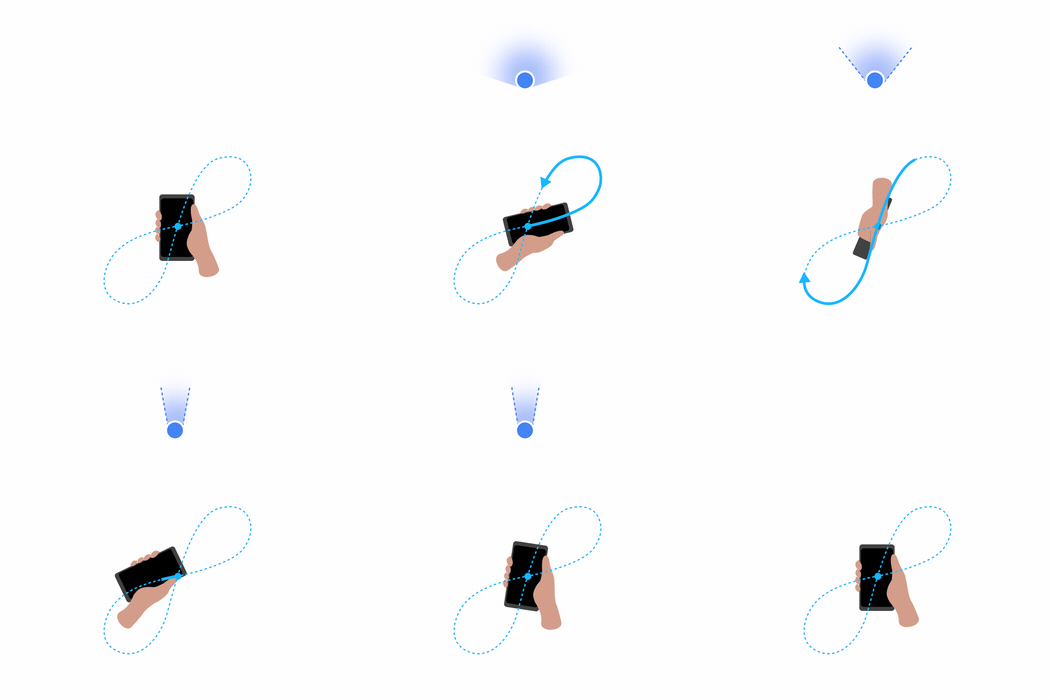
Calibrate Your Compass: Figure 8 pattern method

Works for most compass calibration problems on Android and is the default calibration method to point Google Maps beam in the right direction.

  1. Turn on your Android device.
  2. Hold your phone and make a figure 8 pattern in the air until your compass is calibrated. Usually, you will have to do the figure 8 motion only a few times.
  3. Open your navigation app of choice (e.g., Google Maps) to confirm that the compass points correctly. Your compass should hopefully point to the right direction.
Figure 8 Android compass recalibration

Effectiveness: This is the most common and default calibration method, particularly useful when Google Maps shows incorrect directional readings.


Calibrate Your Compass: Phone Tilt method

  1. Switch on your Android device
  2. Start tilting your phone backwards and forwards. (like nodding your head up and down).
  3. MOVE it from LEFT side to RIGHT side.
  4. Tilt it again, but this time TILT to the LEFT and then to the RIGHT
  5. Keep repeating these steps until you see your compass re-calibrated.

how to recalibration your compass by tilting your phone

Effectiveness: Useful for situations where the standard figure 8 method doesn’t seem to resolve the issue.


Calibrate Your Compass: Three Axis Rotation method (Rotate 360°)

  1. Switch on your Android device
  2. Rotate your phone around its axis forward (as if doing a somersault). Turn it at least three times around.
  3. With phone screen facing up, rotate it around in a circle (form portrait to landscape and so on). Rotate it at least threetimes around.
  4. Rotate your phone around its vertical axis (like spinning a top) to the right and continue around at least three times.
  5. Continue repeating these steps until the compass is recalibrated.

Effectiveness: More thorough calibration that adjusts for orientation in all directions, helpful for devices with more stubborn calibration issues.

Calibrate Your Compass: Built-in compass calibration wizard method

  1. Switch on your Android device
  2. Some Android devices have a built-in re-calibration wizard pop up which comes up once in a while to help you fix your compass issues.
  3. Follow the on-screen instructions to complete the calibration.

Effectiveness: Convenient and often guided by visual cues or prompts, making it easy to follow. This feature may be manufacturer-specific, like in certain Samsung or Xiaomi models.

How to calibrate your compass video tutorial

📍 Compass Calibration & Diagnostic Panel

View live compass direction + sensor stability in real-time.

Live Compass Diagnostic Test

Check magnetometer accuracy in real-time

Heading: --°

X: -- | Y: -- | Z: --

Waiting for motion data...

If you see no movement, open this page on your Android phone or grant motion access on iPhone.

How to read this tool

  • Heading (°) = direction you're facing
    0° = North, 90° = East, 180° = South, 270° = West
  • If the red needle sticks or jumps → recalibration helps
  • Status colors:
Stable - compass accurate
Moderate drift - recalibrate soon
Unstable - do full 3-axis rotation

Fast fix: Move phone in a figure-8 for 5-10 seconds.

What do X / Y / Z mean?

Your phone’s compass doesn’t measure North directly - it reads magnetic field on three axes.

  • X-axis: Left ↔ Right tilt
  • Y-axis: Forward ↔ Backward tilt
  • Z-axis: Rotation / twist around the center

How to interpret changes:

Small movement (0-10)Stable reading - compass calibrated
Medium movement (10-30)Sensor adjusting - direction may wobble slightly
High movement (30+)Drift or interference - recalibration recommended

Tip: If X/Y/Z jump wildly when phone is still → you're near magnets, metal, speakers, or cases.

Live Compass Direction

N

Heading: --°

Status: Waiting...

Magnetic Field Vector Stability

Vector Drift: --

Closer to center = more accurate compass

• Blue dot position: represents magnetic field alignment.

  • Centered: Compass is well calibrated & stable.
  • Drifting outward: Slight misalignment - recalibration may help.
  • Near edge or moving wildly: Strong interference or unstable sensor.

• Vector Drift Score: Measures real-time deviation of magnetic field.

  • 0-20 = Excellent (ideal & accurate)
  • 21-60 = Moderate drift (recalibration recommended)
  • 61+ = High distortion (metal/magnets or weak sensor)

Tip: Perform calibration away from speakers, metal desks, phone cases with magnets, chargers or car mounts.

Frequently Asked Questions (FAQs)

1. Why is my compass not pointing in the correct direction?

The compass on your Android phone may not point correctly due to magnetic interference or the need for recalibration. Common sources of interference include metal objects, electronic devices, or magnetic fields.

2. How do I know if my compass needs recalibration?

If your compass consistently points in the wrong direction or if navigation apps like Google Maps show inaccurate location data, it’s time to recalibrate your compass.

3. What are the different methods for calibrating my compass?

There are several methods to calibrate your compass on Android devices, including:

  • Figure 8 Pattern Method: Make a figure 8 motion with your phone in the air.
  • Phone Tilt Method: Tilt your phone up and down, then side to side.
  • Three Axis Rotation Method: Rotate your phone around each axis (forward, circular, and vertical).
  • Built-in Calibration Wizard: Use any built-in calibration feature provided by your device manufacturer.

4. What if my compass still doesn't work after recalibrating?

If your compass still doesn’t work after trying the recalibration methods, check for software updates for your device. Additionally, consider resetting your phone’s settings or consulting with customer support for further assistance.

5. Are there any specific apps that can help with compass calibration?

Yes, there are several compass apps available on the Google Play Store that offer calibration features and additional tools for navigation. Popular options include "Compass Galaxy" and "Smart Compass."

6. How often should I calibrate my compass?

There’s no set frequency for calibration. However, it’s a good practice to recalibrate your compass whenever you notice incorrect readings or after moving to a new environment.

7. Can environmental factors affect compass accuracy?

Yes, environmental factors such as proximity to metal objects, electronic devices, or geographical variations (e.g., mountains) can affect compass accuracy. Always calibrate in an open area, away from potential sources of interference.

8. Is compass calibration the same for all Android devices?

While the general principles of calibration are similar, the methods might vary slightly between different Android devices. Always refer to your device’s user manual for specific instructions.

Troubleshooting Guide for Compass Issues

1. Common Compass Issues

  • Compass not responding: The compass app doesn’t register movement.
  • Inaccurate direction: The compass points in the wrong direction even after calibration.
  • Compass constantly fluctuating: The compass needle keeps swinging between directions.
  • App crashes or freezes: The compass app closes unexpectedly or becomes unresponsive.

2. Preliminary Checks

  • Check for Updates: Ensure both the device's operating system and the compass app are updated.
  • Restart the Device: A simple restart can resolve temporary glitches.

3. Physical Obstructions

  • Remove Cases or Magnets: Check if any magnetic cases are interfering with the compass.
  • Clear Surroundings: Move away from large metal objects and electronic devices.

4. Settings and Permissions

  • Location Settings: Ensure location services are turned on and set to "High Accuracy."
  • App Permissions: Check that the compass app has permission to access location and sensors.

5. Sensor Calibration

  • Check Sensor Health: Use a sensor diagnostic app to check if the phone's sensors are functioning.
  • Manual Calibration: Guide users through the process of calibrating each relevant sensor.

6. Software Conflicts

  • Disable Unnecessary Apps: Close or disable apps using location services or sensors in the background.
  • Safe Mode: Boot the device in Safe Mode to identify problematic apps.

7. Battery and Performance Issues

  • Check Battery Health: A weak battery may affect sensor performance.
  • Performance Settings: Disable battery saver modes or features that could affect sensor responsiveness.

8. Advanced Troubleshooting

  • Factory Reset: As a last resort, consider a factory reset (backup data first).
  • Contact Support: If issues persist, contact the device manufacturer for assistance.

9. FAQs Related to Compass Issues

  • Why does my compass app drain my battery?

    The compass app may use GPS and other sensors, which can consume battery power.

  • Can environmental conditions affect my compass?

    Yes, strong magnetic fields or metallic objects nearby can interfere with compass readings.

  • Is my phone's compass accurate enough for navigation?

    Generally, yes, but it's recommended to use it in conjunction with maps for better accuracy.

People Also Ask

Compass correct sometimes, wrong other times - why?

Intermittent accuracy usually means sensor drift or magnetic interference. Recalibrate away from electronics and remove magnetic cases. If the compass drifts again within minutes, the magnetometer may be weakening.

Why is my compass still off after doing a Figure-8?

Some sensors need full axis realignment, not just motion in one plane. Try the three-axis rotation method or the tilt pattern to reset all sensor axes, not just horizontal plane.

Compass shows North reversed or rotating backwards

This is caused by inverted axis calibration. Perform full 360° rotations on X/Y/Z, then verify inside Google Maps. A reversed compass almost always fixes within 10-15 seconds of motion.

Why does my compass work outside but not indoors?

Indoor structures contain steel, power wiring, Wi-Fi noise and reinforced concrete - all distort magnetic field readings. Calibrate outdoors or near open space for best results.

Compass only accurate when phone is flat - normal?

Some devices calibrate better on one plane. If accuracy drops when tilted vertically, redo tilt calibration and rotate slowly through each axis. Avoid metal desks, laptops, and charging cables during calibration.

Google Maps says “Move phone like this” but nothing improves

This means the magnetometer is struggling to stabilize. Try restarting, removing phone case, and doing full 360° sensor calibration. If Maps still fails, run a sensor diagnostic app to check hardware.

How long does a compass calibration last?

Usually days or weeks - unless exposed to strong magnetic fields, dropped, or moved long distances (flights, travel). Frequent corrections mean the phone sensor is aging but still usable.

Does low battery affect compass accuracy?

Yes. Power-saving modes reduce sensor sampling rate which can lower compass precision. Keep battery above 20% and disable battery optimization for navigation apps.

Compass accurate in Maps but wrong in other apps

Some apps apply their own smoothing or sensor filters. Calibrate through the OS, not the app. After calibration, force-close the app and reopen so it reads fresh sensor values.

Do phone cases affect compass readings?

Certain cases include magnets or metal plates for mounts - these disrupt magnetometer data. Remove the case during calibration if readings seem unstable or jumpy.

Does airplane travel mess up compass calibration?

Yes - long-distance magnetic variation + pressure changes can cause drift. Always recalibrate after landing, especially if Maps direction beam feels “laggy.”

How can I test if my compass sensor is dying?

If calibration doesn’t hold longer than a few minutes, or readings swing even outdoors, your sensor may be suffering permanent drift. Diagnostic apps can confirm magnetometer stability.

Best Fix for Wrong Compass: Figure-8 motion 5-10 sec

Best Fix When Tilt is Broken: 3-axis full rotations

Still Wrong? Remove case → restart → outdoor recalibration

Compass Works Only Sometimes: Sensor drift → redo every few days

Voice-ready answer: Here’s how to calibrate your compass on Android:

  1. Move your phone in a smooth figure-eight for a few seconds.
  2. Tilt it forward, backward, left and right to reset the sensors.
  3. Rotate the phone through all three axes: horizontal, vertical and forward.
  4. If your device shows a calibration wizard, just follow the on-screen steps.

Short version: Move phone in a figure-eight, tilt all directions, rotate 3 axes, or use the calibration wizard.

Explore Military Flashlight with Compass

Military Flashlight App with compass

Looking for a reliable compass app for your Android phone? Try Military Flashlight! This app not only provides a powerful flashlight feature but also includes a highly accurate compass to help you navigate your surroundings with ease.

  • Key Features:
  • Bright LED flashlight
  • Accurate compass for navigation
  • User-friendly interface
  • Offline functionality

Download Military Flashlight Now!